How to Make a Cover Page in Word
By Guccibase · · 8 min read
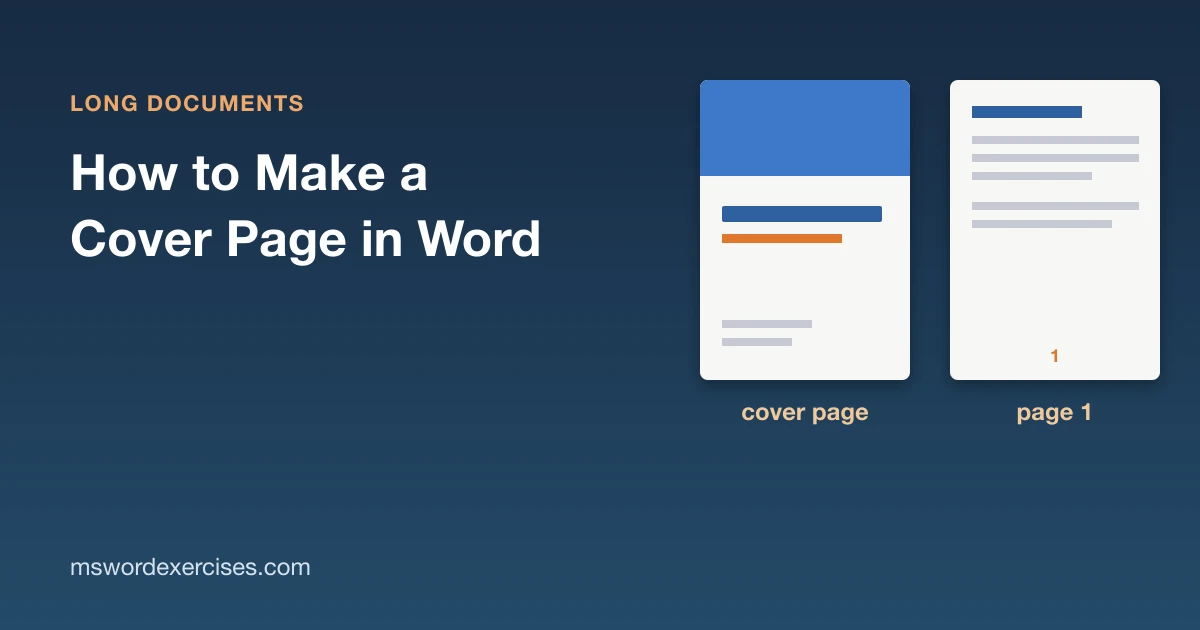
To make a cover page in Word, go to Insert > Cover Page and pick a design from the gallery. Word adds a ready-made first page with boxes for the title, subtitle, author and date; click each one and type your own text. If you would rather design the page yourself, type the title on the first page, apply the Title style and insert a page break after it. This guide covers both methods in Microsoft 365 Word, plus how to swap or remove a cover page and how to keep page numbers and headers off it. The steps follow Microsoft's own documentation, linked throughout, and were last checked against it on 9 November 2026.
Key Takeaways
- Insert a ready-made design with Insert > Cover Page (in the Pages group on Windows) and replace the sample text.
- Inserting a second cover page replaces the first one, so you can try designs without ending up with two.
- Remove it with Insert > Cover Page > Remove Current Cover Page (Remove Cover Page on a Mac).
- A plain title page is just the first page of the document: the Title style plus a page break. Use Different First Page to keep the header and page number off it.
- Word for the web cannot add or edit a title page; open the file in the Word desktop app.
Built-in cover page or your own title page?
Both give the document a proper first page. The difference is how much Word does for you.
| Feature | Built-in cover page | Your own title page |
|---|---|---|
| How you add it | Insert > Cover Page, choose a design | Type the text, apply the Title style, insert a page break |
| Design | Ready-made layouts with colour, shapes and text boxes | Whatever you build, usually plain text |
| Swapping | Pick another design and it replaces the current one | Edit by hand |
| Page number on it | Microsoft notes none is shown; check the footer | Hide it with Different First Page |
| Best for | Reports, proposals and handouts where a designed front page helps | Assignments, theses and reports with a set format |
If your school, journal or employer gives you a required layout for the title page, build your own: the built-in designs are decorative and hard to bend to a strict format. If nobody has specified a format, the built-in gallery is the quickest way to a polished first page.
How to insert a built-in cover page
Microsoft's article on how to add a cover page in Word gives these steps for Word for Windows:
- Go to the Insert tab.
- In the Pages group, select Cover Page.
- Choose a layout from the gallery.
On a Mac the path is shorter: Insert > Cover Page, then choose a layout. Microsoft's Mac steps add a tip: to see how the cover page will look on the page, choose View > Print Layout.
You can add the cover page at any point, including after the rest of the document is written. It is often easiest to add it last, once the title and date are final.
Fill in the sample text
Each design comes with placeholder text for things like the title, subtitle, author, company and date. Microsoft's article says to replace it by selecting an area of the cover page, such as the title, and typing your text. Work through every box, including small ones near the bottom of the page that are easy to miss.
If a design has a box you do not need, such as a company address on a school assignment, select it and delete it rather than leaving the sample text in place. Check the page once more before you share the file, because leftover placeholder text on the front page is the first thing a reader sees.
How to change or remove a cover page
To try a different design, insert another one from the same gallery. Microsoft's cover page article explains that the new cover page replaces the first cover page you inserted, so you never end up with two. Retype or check the text afterwards, since a new design has its own boxes.
To remove the cover page completely:
- Windows: Insert > Cover Page (in the Pages group) > Remove Current Cover Page.
- Mac: Insert > Cover Page > Remove Cover Page.
One exception: a cover page created in an earlier version of Word is not replaced or removed this way. Microsoft's advice is to delete that page by hand first and then add a new cover page from the gallery.
How to make your own title page
A title page you build yourself is simply the first page of the document, with nothing special about it. That makes it easy to match a required format.
- On the first page, type the title, then any other lines you need: subtitle, your name, course or organisation, and the date.
- Click in the title and apply the Title style from the styles gallery on the Home tab. Microsoft's guide to customising or creating styles explains how styles work, including how to change how Title looks for the whole document.
- Click at the end of the last line and go to Insert > Page Break, as described in Microsoft's article on how to insert a page break. On a Mac, use Layout > Breaks > Page.
Use a page break rather than pressing Enter until the cursor reaches the next page. Blank lines move whenever the title page changes, and the report body then starts halfway down a page. A page break keeps the next page in place however much you edit above it.
To place text lower on the page, add space before the title paragraph in the Paragraph dialog instead of typing empty lines. The guide to paragraph spacing in Word shows how.
Page numbers and headers after a cover page
Microsoft's Mac steps note that cover pages don't display page numbers. After inserting a built-in design on any platform, glance at its footer; if a number does show, turn on Different First Page as below. A title page you build yourself is an ordinary page, so it shows the header, footer and page number like any other. To hide them on the first page, Microsoft's guide to starting page numbering later gives these steps:
- Go to Insert > Header or Footer > Edit Header or Edit Footer.
- Select Different First Page.
- If a page number is still showing on the first page, select it and press Delete.
- Select Close Header and Footer, or press Esc.
With Different First Page on, the second page still counts as page 2. If it should show 1, go to Insert > Page Number > Format Page Numbers and set Start at to 0, as the same Microsoft guide suggests. The full walkthrough, including starting at page 3 after a cover and a contents page, is in how to start page numbers on page 2 or page 3. For headers that change between parts of the document, see the guide to headers and footers in Word.
Can you add a cover page in Word for the web?
No. Microsoft's page on how to add or edit a title page states that adding or editing a title page isn't currently possible in Word for the web, but you can do it in the Word desktop app. Microsoft's feature comparison for Word for the web and desktop also lists Cover Page as a desktop feature.
If the file is open in your browser, open it in the Word desktop app instead, add the cover page there, and save. The Word for the web vs desktop comparison lists the other features that need the desktop app.
Common cover page problems and fixes
- There is a page number or header on the title page. Usually it is a title page you built, or Different First Page has been turned off. Turn on Different First Page in the header and footer, as described above.
- The first numbered page shows 2. Different First Page hides the number without changing the count. Set Start at to 0 in Format Page Numbers.
- Your first cover page vanished when you tried another design. That is expected: a new cover page replaces the current one. Pick the design you want and retype any text that did not carry over.
- Remove Current Cover Page leaves the page in place. The cover page probably came from an older version of Word, or it is a title page typed by hand. Delete it manually.
- The report starts halfway down page 2. Empty paragraphs were used instead of a page break. Turn on paragraph marks to see them, delete them and insert a page break.
Frequently asked questions
Is a cover page the same as a title page?
In everyday use, yes: both are the first page that names the document. In Word, cover page usually means one of the designs from Insert > Cover Page, while a title page is often typed by hand to match a set format. Microsoft's own help uses both terms for the same feature.
Should a cover page appear in the table of contents?
Usually not. A table of contents lists text that uses heading styles, so a title in the Title style stays out of it. Keep the cover page's title out of Heading 1 and the contents will start with your first real section. The automatic table of contents guide explains how the list is built.
Can I reuse my own cover page design?
Yes. Word can store reusable content, such as a finished title page, as a building block. Microsoft's guide to Quick Parts and AutoText shows how to select the content and use Insert > Quick Parts > Save Selection to Quick Part Gallery. For a whole document layout you reuse often, a Word template is usually the better choice.
Practise title pages and page layout
On Word Exercises you practise the skills behind a clean front page on real .docx files in your browser, and your work is checked automatically:
- Apply the Title style to a document title
- Use a page break instead of empty lines
- Build a "Page X of Y" footer
For the background, work through the page setup and breaks module. The automatic table of contents guide is the hub for long documents, and how to format a report in Word shows where the cover page fits in a finished report.
Steps in this guide were checked against the Microsoft Support pages linked above for Microsoft 365 Word on 9 November 2026. If a menu has moved or something here is wrong, tell us through the help page.
Related posts
Written by Guccibase; see how these guides are written. Word Exercises is independent and not affiliated with Microsoft. Menu names follow Microsoft 365 as of 2026.