Line and Paragraph Spacing in Word: Fix Uneven Gaps for Good
By Guccibase · · 7 min read
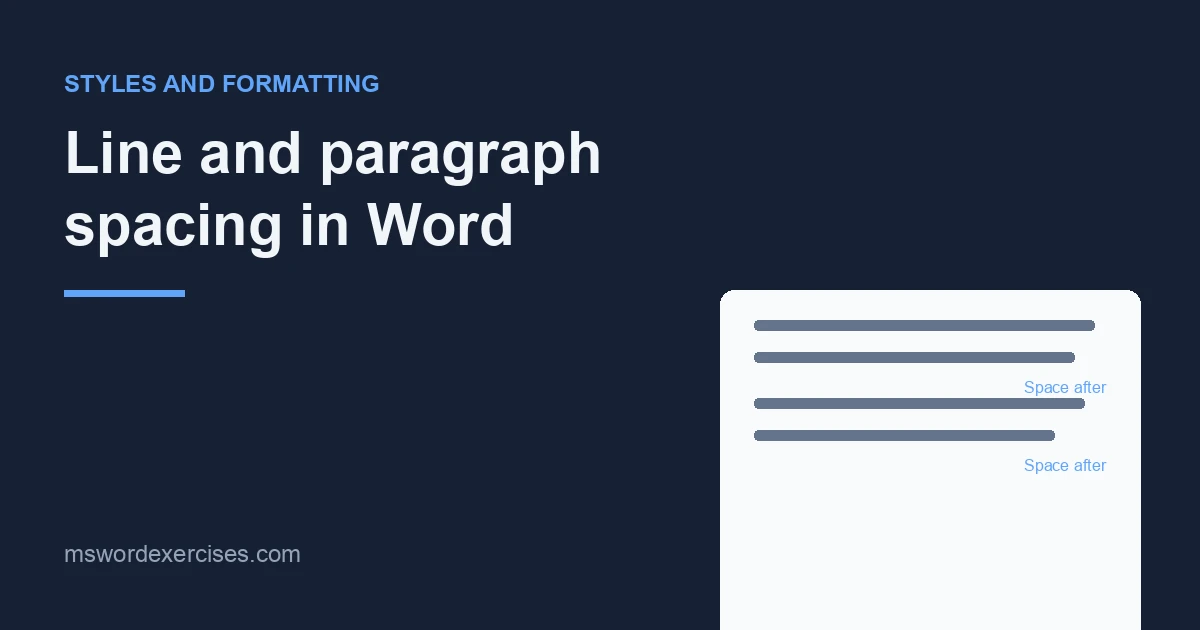
Word has two kinds of spacing. Line spacing is the distance between lines inside a paragraph. Paragraph spacing is the extra space before and after each paragraph. Both are set in Home > Line and Paragraph Spacing > Line Spacing Options, and uneven gaps often come from mixing them up with blank lines made by pressing Enter twice.
This guide shows how to set each kind of spacing, how to find what is causing an odd gap, and how to make spacing consistent across a whole document so it stays that way. Steps are for Word for Microsoft 365 on Windows, with Mac and Word for the web notes.
Key Takeaways
- Line spacing controls the gap between lines in a paragraph; spacing Before and After controls the gap between paragraphs.
- Set both in Home > Line and Paragraph Spacing > Line Spacing Options. Shortcuts: Ctrl+1 single, Ctrl+5 1.5 lines, Ctrl+2 double.
- Replace blank paragraphs with spacing After. Turn on Show/Hide ¶ (Ctrl+Shift+8) to find them.
- For consistent gaps everywhere, set spacing in the Normal and heading styles, not on individual paragraphs.
- Word's default line spacing is 1.15, according to Microsoft.
Line spacing versus paragraph spacing
- Line spacing is set as Single, 1.5 lines, Double, At least, Exactly or Multiple. Microsoft's Adjust indents and spacing page defines each: At least sets a minimum that grows to fit the largest font or graphic on the line, Exactly fixes the spacing in points, and Multiple uses a number such as 1.15.
- Paragraph spacing is set in points as Before (above the paragraph) and After (below it).
Microsoft's Change the default line spacing in Word page says the default line spacing is 1.15, that paragraphs are followed by a blank line by default, and that headings have space above them. That "blank line" is spacing After, not an empty paragraph.
How to change line spacing
- Select the paragraphs, or press Ctrl+A for the whole document.
- Go to Home > Line and Paragraph Spacing (the icon with lines and up and down arrows in the Paragraph group).
- Choose a value such as 1.0, 1.15, 1.5 or 2.0.
- For other values, choose Line Spacing Options, pick an option in the Line spacing box, set the At value if needed, and select OK.
Microsoft's keyboard shortcuts page lists these shortcuts for the selected paragraphs:
| Spacing | Windows | Mac |
|---|---|---|
| Single | Ctrl+1 | Cmd+1 |
| 1.5 lines | Ctrl+5 | Cmd+5 |
| Double | Ctrl+2 | Cmd+2 |
Avoid Exactly for body text unless you have a reason. Fixed spacing does not grow for larger text or inline pictures, so tall content can be cut off. At least is the safer choice when you need a minimum.
To check the result, click in one of the paragraphs and press Shift+F1. The Reveal Formatting pane lists the line spacing under Paragraph.
Try the free exercise Set 1.5 line spacing on a review draft.
How to change space before and after paragraphs
- Select the paragraphs.
- Go to Home > Line and Paragraph Spacing > Line Spacing Options.
- Under Spacing, set Before and After in points (pt). Type a number or use the arrows.
- Select OK.
To check, turn on Show/Hide ¶: the gap should now appear between paragraphs without any empty ¶ lines.
These steps follow Microsoft's Change spacing between paragraphs page. The Layout tab's Paragraph group also has Before and After boxes for quick changes.
The gap you see between two paragraphs includes the first paragraph's space After and the next paragraph's space Before. If a gap looks too big, check both paragraphs.
Don't add space between paragraphs of the same style
In the same dialog, the check box Don't add space between paragraphs of the same style removes Before and After spacing between paragraphs that share a style. Microsoft's Adjust indents and spacing page notes it is useful for items such as bulleted lists, where you want space around the list but not between every item.
How to fix uneven gaps
When spacing looks random, find the cause before changing anything.
Step 1: Show formatting marks
Select Home > Show/Hide ¶ or press Ctrl+Shift+8. Every paragraph now ends with a ¶ mark. A line with only a ¶ on it is an empty paragraph being used as a spacer. The lesson Seeing hidden characters explains the other marks you will see.
Step 2: Remove blank paragraphs
Delete empty paragraphs that were added for spacing and let spacing After create the gap instead. Blank paragraphs give fixed gaps that break across pages, collect stray formatting and make the document harder to restyle.
Practise with the free exercise Replace blank lines with paragraph spacing.
Step 3: Find paragraphs with different spacing
Click in a paragraph with an odd gap and press Shift+F1 to open the Reveal Formatting pane. Under Paragraph, it shows the spacing Before, After and line spacing for that paragraph. Compare it with a paragraph that looks right.
Step 4: Reset hand-applied spacing
Select the affected paragraphs (or the whole document) and press Ctrl+Q. Microsoft's shortcuts page lists this as "remove paragraph formatting": it removes spacing and indents added by hand and returns each paragraph to the settings of its style. Character formatting such as bold is not affected. The Clear Formatting guide explains the difference between the clearing tools.
Step 5: Check page-flow settings
If a paragraph jumps to the next page and leaves a large gap, open Line Spacing Options > Line and Page Breaks. Options such as Keep with next, Keep lines together and Page break before move paragraphs to keep them together. They are useful on headings, but on body text they can leave unexpected white space.
Make spacing consistent with styles
Fixing paragraphs one by one only lasts until the next edit. To make spacing stick, set it in the styles.
- On Home > Styles, right-click Normal and choose Modify.
- Select Format > Paragraph.
- Set Line spacing, Before and After for body text, then select OK.
- Choose Only in this document, or New documents based on this template to keep it for future documents. Select OK.
- Repeat for Heading 1, Heading 2 and Heading 3, usually with more space Before than After so each heading sits closer to the text it introduces.
Every paragraph using those styles now has identical spacing. The guide to modifying the Normal style explains why Normal is the right starting point, and the complete guide to styles in Word covers the rest of the styles system. The Pro exercise Set paragraph spacing in the Normal style practises exactly this.
Quick whole-document presets
Design > Paragraph Spacing applies a preset to the whole document. No Paragraph Space gives single-spaced text with no gaps; Custom Paragraph Spacing lets you enter your own values. To undo, open Design > Paragraph Spacing again and choose the option under Style Set (Microsoft Support).
Set spacing as the default for new documents
If you want the same spacing in every new document:
- Go to Home > Line and Paragraph Spacing > Line Spacing Options.
- Set Line spacing, Before and After.
- Select Set As Default.
- Choose All documents based on the Normal template and select OK.
These are Microsoft's steps from Change the default line spacing in Word. On a work computer, a template set by your organisation may override this.
Word for Mac and Word for the web
- Mac: go to Home > Line and Paragraph Spacing > Line Spacing Options and set the options under Spacing, including Before and After. Set As Default works the same way. You can also open Format > Paragraph.
- Word for the web: select the paragraphs and go to Home > Line Spacing, then choose a value or Line Spacing Options to set Before and After. Microsoft notes that new documents in Word for the web go back to 1.15 line spacing, so there is no permanent default to set there.
Frequently asked questions
Why is there a big gap between my paragraphs in Word?
Usually one of three things: an empty paragraph used as a spacer, large spacing Before or After on one of the paragraphs, or a page-flow setting such as Keep with next pushing text to the next page. Turn on Show/Hide ¶ and open Reveal Formatting (Shift+F1) to see which.
How do I remove the space after paragraphs in Word?
Select the paragraphs, open Line Spacing Options and set After to 0 pt. For the whole document, use Design > Paragraph Spacing > No Paragraph Space, or set After to 0 in the Normal style.
What is the difference between 1.0 and 1.15 line spacing?
1.0 (Single) uses the standard line height for the font. 1.15 is a Multiple setting that adds 15% to it. Microsoft lists 1.15 as Word's default line spacing.
How do I double-space a document in Word?
Press Ctrl+A, then Ctrl+2. To keep it, set Double in the Normal style's paragraph settings. If your guidelines also ask for no extra space between paragraphs, set Before and After to 0 pt.
Practise spacing on real documents
On Word Exercises you can repair spacing in a real .docx file in the browser editor and get an automatic check. Start with the lesson Paragraph spacing instead of blank lines or the paragraph formatting module.
Related posts
Written by Guccibase; see how these guides are written. Word Exercises is independent and not affiliated with Microsoft. Menu names follow Microsoft 365 as of 2026.