Footnotes vs Endnotes in Word: When and How to Use Each
By Guccibase · · 9 min read
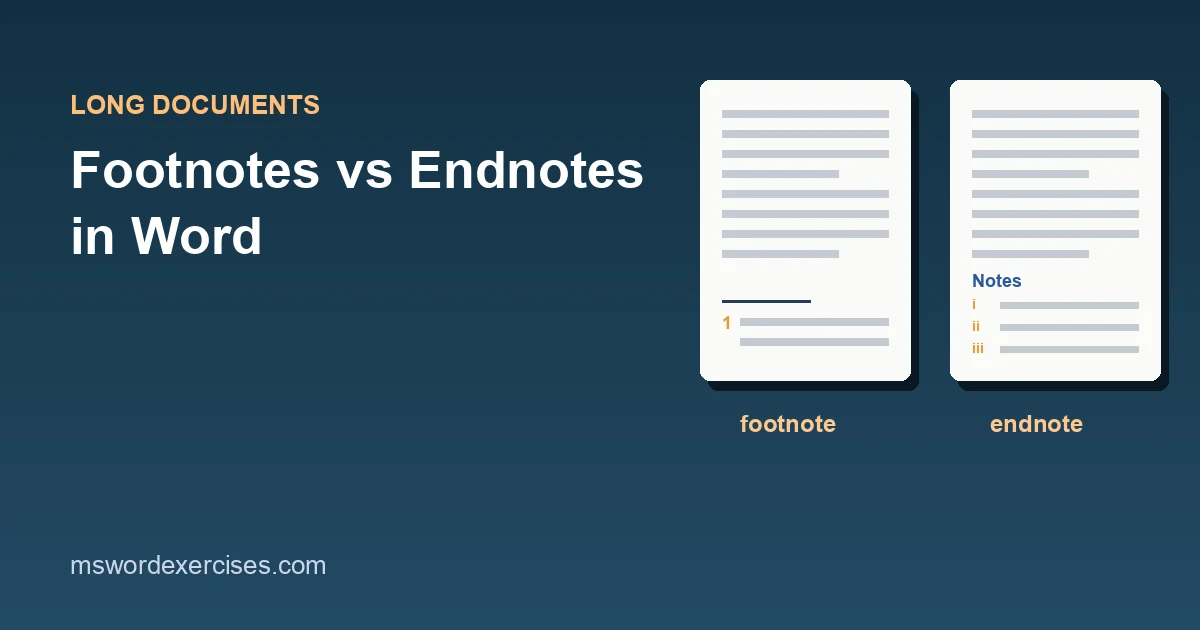
A footnote prints at the bottom of the page where you reference it. An endnote waits at the end of the document (or the end of a section). Both start in the same place in Word: click where the reference mark should go, open the References tab and choose Insert Footnote or Insert Endnote. Which one to pick comes down to how quickly your reader needs the note, and what your style guide says.
This guide compares the two side by side, then walks through inserting, renumbering, converting and deleting notes in Microsoft 365 Word on Windows, with the differences for Mac and Word for the web.
Key Takeaways
- Use footnotes when the reader needs the note while reading: short source citations, brief clarifications, definitions.
- Use endnotes when notes are long or numerous, when they would crowd the page, or when your house style asks for them.
- Insert either from References > Insert Footnote / Insert Endnote, or press Ctrl+Alt+F (footnote) or Ctrl+Alt+D (endnote).
- Word numbers the notes for you. To delete a note, delete its reference mark in the body text, and the rest renumber.
- You can switch every footnote to an endnote (or back) in one step with the Convert button in the Footnote and Endnote dialog.
Footnotes vs endnotes at a glance
The main difference is where the note text appears. The insert, convert and style tools are shared, although the default numbering differs and only footnotes can restart on every page.
| Feature | Footnotes | Endnotes |
|---|---|---|
| Where the note appears | Bottom of the same page (or directly below the text) | End of the document (or end of each section) |
| Default numbering in Word | 1, 2, 3 | i, ii, iii |
| Insert command | References > Insert Footnote | References > Insert Endnote |
| Windows shortcut | Ctrl+Alt+F | Ctrl+Alt+D |
| Reading experience | Note is visible without leaving the page | Reader flips to the end, but pages stay clean |
| Best for | Short citations, clarifications, definitions | Long commentary, many notes, house styles that require them |
| Restart numbering | Continuous, each section or each page | Continuous or each section |
When should you use footnotes?
Choose footnotes when the note is short and the reader benefits from seeing it straight away. Typical cases:
- Citing a source for a specific claim, so a reviewer can check it without leaving the page.
- A brief clarification or definition that would interrupt the sentence if you put it in brackets.
- Documents read on paper or as PDFs, where flipping to the back is a nuisance.
The trade-off is page clutter. If a page carries many long footnotes, the body text shrinks and the layout becomes hard to read. That is the signal to consider endnotes.
When should you use endnotes?
Choose endnotes when the notes are supporting material rather than something the reader needs mid-sentence:
- Long explanatory notes that would take over the bottom of the page.
- Many citations in a short space, such as a dense literature summary.
- Books, reports and articles whose style guide asks for endnotes, sometimes collected at the end of each chapter (each section, in Word terms).
If your school, publisher or employer has a house style, it wins. Many academic styles specify one or the other, or use in-text author-date citations with a reference list instead of notes. Word builds those for you: see how to insert citations and a bibliography in Word.
How to insert a footnote or endnote in Word
Inserting a note takes three steps, and Word handles the numbering. Microsoft's footnotes and endnotes training page gives the same sequence.
- Click in the text exactly where the reference mark should appear, usually right after the word or punctuation mark the note refers to.
- On the References tab, in the Footnotes group, select Insert Footnote or Insert Endnote. Shortcuts: Ctrl+Alt+F for a footnote, Ctrl+Alt+D for an endnote, as listed on Microsoft's keyboard shortcuts in Word page.
- Type the note text. Word places the cursor in the note area for you.
To get back to where you were, double-click the number at the start of the note. To step through notes, use References > Next Footnote (its menu also offers previous footnote and next or previous endnote).
Need to point to the same note twice? Don't insert a second note. Use References > Cross-reference, set Reference type to Footnote (or Endnote) and Insert reference to Footnote number (formatted). The cross-reference is a field, so after notes are added or removed, update it: press Ctrl+A then F9 in the body text. A cross-reference that sits inside a note is updated separately: click in the note area and press Ctrl+A, then F9 there. The guide to captions and cross-references explains cross-reference fields in more detail.
Tip: put the reference mark after the punctuation it follows (for example, after a full stop) unless your style guide says otherwise, and keep the same rule throughout.
How to change note numbering, position and format
All note settings live in the Footnote and Endnote dialog. Open it from the small dialog launcher arrow in the bottom-right corner of the Footnotes group on the References tab.
The main options:
- Location: footnotes at the Bottom of page or Below text; endnotes at the End of document or End of section.
- Number format: 1, 2, 3 / a, b, c / i, ii, iii / symbols. This is where you change endnotes from Roman numerals to ordinary numbers.
- Custom mark: use a symbol instead of a number for a one-off note.
- Start at: begin numbering at a value other than the first, useful when a chapter lives in its own file.
- Numbering: Continuous, Restart each section or (footnotes only) Restart each page.
- Apply changes to: the whole document or only the current section.
Select Apply to change existing notes, or Insert to add a new note with those settings.
Restart numbering for each chapter
Word restarts note numbers at sections, not at headings. Microsoft's screen reader guide to footnotes and endnotes points out that you need a section break where numbering should restart. Insert one with Layout > Breaks > Next Page at the start of each chapter, then choose Restart each section in the dialog. The guide to section breaks in Word covers inserting, finding and removing them.
How to convert footnotes to endnotes (or back)
You do not need to retype anything to switch note types.
- Open the Footnote and Endnote dialog from the Footnotes group launcher.
- Select Convert.
- Choose Convert all footnotes to endnotes, Convert all endnotes to footnotes or Swap footnotes and endnotes, then select OK.
To convert just one note, right-click the note text (at the bottom of the page or the end of the document) and choose Convert to Endnote or Convert to Footnote.
Converted notes take the number format of their new type, so check the result. If endnotes arrive as i, ii, iii and you want 1, 2, 3, change Number format and select Apply.
How to delete a footnote or endnote
Delete the reference mark in the body text, not the note text at the bottom of the page. Select the small number in the paragraph and press Delete. Word removes the note and renumbers every later note. Deleting only the note text leaves an empty note with its number still in the body.
If you cannot tell which mark belongs to which note, hover the pointer over a reference mark: on Windows, Word shows the note text in a ScreenTip.
How to format note text consistently
Word formats notes through built-in styles: Footnote Text and Endnote Text for the note itself, and Footnote Reference and Endnote Reference for the superscript marks. To make every note 9 pt, modify the Footnote Text style rather than selecting notes one by one. The complete guide to Word styles explains how to modify a style so the change applies everywhere.
What is different on Mac and in Word for the web?
- Word for Mac: the References tab has the same Insert Footnote and Insert Endnote buttons and the same dialog launcher in the Footnotes group, as Microsoft's Word for Mac footnotes page shows. Restart numbering works through the same Numbering options.
- Word for the web: you can insert footnotes and endnotes from the References tab, but to convert between them Microsoft's footnotes and endnotes article says to use Open in Word and convert in the desktop app. For other gaps between the two, see Word for the web vs the desktop app.
Common footnote and endnote problems
Numbering does not restart at a new chapter. There is no section break, or Apply changes to was set to the wrong section. Add a section break and set Restart each section for the whole document.
Endnotes appear after the appendix. Endnotes go at the end of the document by default. Insert a section break before the appendix and set the location to End of section.
If the main text is split into several sections (one per chapter), the notes will print at the end of each chapter; to collect them in one place, tick Suppress endnotes for the earlier sections (Layout > Page Setup dialog launcher > Layout tab), and they move to the next section that does not suppress them.
A footnote number is typed, not real. A typed superscript "1" does not renumber and is not linked to a note. Delete it and insert a real footnote.
Notes look different from each other. Someone formatted notes directly. Select the note text and reapply the Footnote Text style, then change the style itself.
Frequently asked questions
Can a Word document have both footnotes and endnotes?
Yes. Word numbers each type separately, so footnote 1 and endnote i can sit in the same document. Some reports use footnotes for brief clarifications and endnotes for source citations.
Are footnotes and endnotes accessible to screen reader users?
Yes, when you insert them with Word's own commands. Microsoft's screen reader guide to footnotes and endnotes shows how screen reader users insert, read and edit real notes; a typed superscript number with text at the bottom of the page offers none of that.
Do footnotes count toward a word limit?
That depends on the rules you are writing for, not on Word. Word's word count dialog has an option to include textboxes, footnotes and endnotes, so you can count either way and report what your instructions ask for.
Which should you choose?
Choose footnotes when readers need the note on the page they are reading, and the notes are short. Choose endnotes when notes are long or numerous, or when your style guide asks for them. If you change your mind later, the Convert button switches every note in one step.
Practise footnotes and endnotes
Reading the steps is quicker than doing them, but doing them is what makes them stick. On Word Exercises you practise on real .docx files in your browser, and your work is checked automatically:
- Add a footnote citing a source (free)
- Correct the text of a footnote (free)
- Use an endnote for a source list item (Pro)
For the background, read the lessons on footnotes for sources and endnotes and house style, or work through the contents pages and notes module. Notes are one part of a long document: the automatic table of contents guide is the hub for this topic, and how to format a report in Word shows where notes fit in a finished report.
Steps in this guide were checked against the Microsoft Support pages linked above for Microsoft 365 Word on 5 November 2026. If a menu has moved or something here is wrong, tell us through the help page.
Related posts
Written by Guccibase; see how these guides are written. Word Exercises is independent and not affiliated with Microsoft. Menu names follow Microsoft 365 as of 2026.