Fake Headings in Word: Why Bold Text Is Not a Heading
By Guccibase · · 8 min read
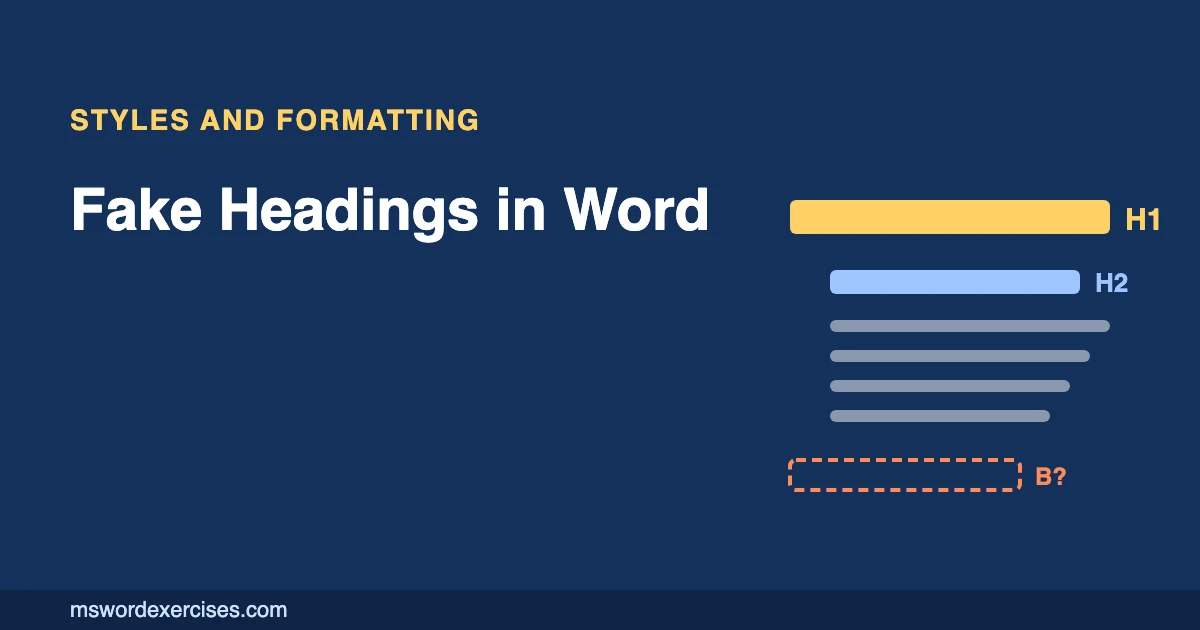
A fake heading is a line of body text formatted to look like a heading, usually with bold, a bigger font or a colour, but without a heading style. It looks right on the page, yet Word still treats it as an ordinary paragraph. That is why it does not appear in the Navigation pane or an automatic table of contents, and why screen reader users cannot jump to it. The fix is to apply a real heading style such as Heading 1 or Heading 2.
This FAQ explains what Word does with real headings, how to spot fake ones and how to convert them quickly in Word for Microsoft 365 on Windows. The Styles gallery on the Home tab works the same way on a Mac.
Key Takeaways
- Bold or large text changes only how a line looks. A heading style (Heading 1, Heading 2 and so on) tells Word the line is a heading.
- Word builds the Navigation pane and the automatic table of contents from heading styles, so fake headings are left out of both.
- Microsoft's accessibility guidance asks for built-in heading styles so screen reader users can understand and navigate the document.
- Spot fake headings by opening View > Navigation Pane and looking for headings that are missing.
- Fix them by applying a heading style (Ctrl+Alt+1, 2 or 3), then change the heading's look by modifying the style.
What is a fake heading in Word?
A fake heading is any line that is meant to be a heading but uses the Normal style (or another body style) plus direct formatting. Common versions are:
- Normal text made bold and 14 pt.
- Text typed in capitals and underlined.
- A heading copied from another document that kept its look but lost its style.
- A line formatted with Format Painter from a real heading without its paragraph mark, so only the character formatting came across.
To a reader the result can look identical to a real heading. To Word, and to anyone using assistive technology, it is just another paragraph.
| Fake heading (bold Normal text) | Real heading (heading style) | |
|---|---|---|
| What Word sees | A body paragraph with direct formatting | A heading at a set level |
| Navigation pane | Not listed | Listed and clickable |
| Automatic table of contents | Left out | Included |
| Screen readers | Read as ordinary text | Announced as a heading you can jump to |
| Changing the look of all headings | Fix each one by hand | Modify the style once |
Why is bold text not a heading?
Because formatting and structure are different things in Word. Bold, size and colour are formatting: they change appearance only. A heading style is structure: it marks the paragraph as a heading at a particular level (Heading 1 for main sections, Heading 2 for sub-sections, and so on), and Word builds several features on top of that.
Does a fake heading appear in the table of contents?
No. Microsoft's Insert a table of contents article says "Word uses the headings in your document to build an automatic table of contents". Its fix for missing entries is to apply a heading style, such as Heading 1, to each heading you want included and then update the table. A bold Normal paragraph is never picked up.
Does a fake heading appear in the Navigation pane?
No. The Navigation pane (View > Navigation Pane, then the Headings tab) lists paragraphs that use heading styles. A long report full of fake headings shows an empty or incomplete outline, so you cannot click to jump between sections or drag a section to reorder it.
Do fake headings affect accessibility?
Yes. Microsoft's guide to making Word documents accessible tells authors to "use the built-in heading styles", because headings help "screen reader users to determine the structure of the document and navigate the headings". A screen reader user can list or jump between real headings. Fake headings are read as ordinary text, so the document's structure is invisible to them.
Microsoft's accessibility guide also suggests bold or a larger font for headings, but as part of the heading style's look, not instead of it.
Does it matter if nobody will use a screen reader?
Yes, for practical reasons:
- Consistency: change the Heading 2 style once and every Heading 2 updates. Fake headings must be fixed one by one, and they drift apart over time.
- Navigation: you and your colleagues lose the clickable outline in long documents.
- Contents pages: an automatic table of contents cannot be generated or updated.
- Skills checks: a document check that looks at structure, like the automatic checks in this site's exercises, tests the style, not just whether the text looks bold.
How do I spot fake headings?
Use either of these quick checks:
- Navigation pane: select View > Navigation Pane and open the Headings tab. Any heading you can see on the page but not in the pane is fake (or uses a non-heading style).
- Styles gallery: click in the suspicious line and look at the Home tab's Styles gallery. If the highlighted style is Normal (or anything other than a heading style), it is a fake heading.
For a closer look, press Shift+F1 to open Reveal Formatting, which lists the paragraph style and any direct formatting on top of it (Keyboard shortcuts in Word).
How do I turn a fake heading into a real heading?
- Clear its direct formatting (optional but recommended): select the whole line and press Ctrl+Spacebar, which removes character formatting such as leftover bold or colour so it does not sit on top of the style.
- Keep the cursor in the line. A paragraph style applies to the whole paragraph, so you do not need to select the text for the next step.
- Apply the heading style: select Heading 1, Heading 2 or Heading 3 in the Styles gallery on the Home tab, or press Ctrl+Alt+1, Ctrl+Alt+2 or Ctrl+Alt+3.
- Check the Navigation pane. The heading should now appear at the right level. The lesson on real headings with heading styles walks through the same method on a practice file.
On a Mac, the heading styles are in the same Styles gallery on the Home tab.
How do I keep the look I liked?
Convert the headings first, then make the style look the way you want:
- Format one real heading the way you want all of them to look.
- Right-click its style (for example Heading 2) in the Styles gallery.
- Choose Update Heading 2 to Match Selection.
Every Heading 2 in the document now matches. Microsoft's Customize or create new styles article also covers the Modify route if you prefer to set the font, size and spacing in a dialog.
How do I fix many fake headings at once?
If all the fake headings share exactly the same formatting, click in one, then on the Home tab choose Select > Select Text with Similar Formatting. Check the selection, then apply the heading style once. Look over the result in the Navigation pane, because any body text with the same formatting will be converted too. If your fake headings sit at different levels, repeat this for each level.
Avoid fixing headings with Format Painter: it is built for copying a look, so applying the heading style directly is the reliable way to make Word treat the line as a heading.
Which heading level should each heading use?
Use the levels like an outline:
- Heading 1 for the main sections.
- Heading 2 for sections inside a Heading 1.
- Heading 3 for sections inside a Heading 2.
Microsoft's accessibility guidance says to "organize headings in the prescribed logical order and do not skip heading levels", so go from Heading 1 to Heading 2, not straight to Heading 3. Pick the level for its place in the structure, never for its size; if Heading 3 looks too small, modify the style.
For the document's main title, many documents use the Title style rather than Heading 1. The styles and headings module covers when to use Title, Heading 1 and Normal.
Other common questions about headings
Can I still use bold in my document?
Yes. Bold is for emphasis inside a sentence or for a label at the start of a list item. It becomes a problem only when bold is standing in for a heading.
Why does a body paragraph show up in my table of contents?
That paragraph has been given a heading style by mistake (the opposite of a fake heading). Click in it and apply Normal with Ctrl+Shift+N, then update the table of contents.
Why does my formatting keep changing after I fix the headings?
Two settings are common causes: a style with Automatically update switched on (clear it in Modify Style), or the Built-in Heading styles option under AutoFormat As You Type, which can apply heading styles to short paragraphs as you type (AutoFormat as you Type). The post on why your Word formatting keeps changing explains each cause and its switch.
Practise fixing fake headings
The free Turn look-alike headings into real headings exercise gives you a report full of bold fake headings and checks automatically that each one now uses the right heading style. For a shorter warm-up, try Make a section appear in the navigation outline. The complete guide to styles in Word shows how headings fit into a consistent document.
Sources
The heading behaviour, table of contents, accessibility guidance, style, AutoFormat and shortcut details in this article were checked on 5 November 2026 against these Microsoft Support articles:
Related posts
Written by Guccibase; see how these guides are written. Word Exercises is independent and not affiliated with Microsoft. Menu names follow Microsoft 365 as of 2026.